

Overview
Mixpanel has a native extension for Google Sheets that enables you to import CSV data to your Mixpanel project, and export your Mixpanel reports/cohorts to your Sheets. The source code for this extension lives here.Install the plugin
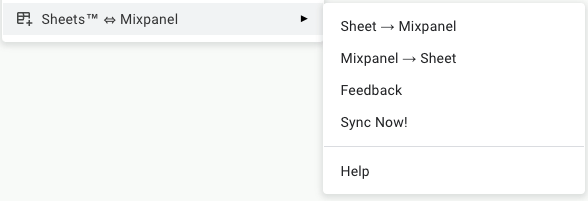
Visit the Sheets ⇔ Mixpanel Google Workspace Marketplace page to install the extension. Learn more about the permissions requested here. After installing, you will see the Sheets ⇔ Mixpanel dropdown under “extensions” in any Google Sheet. This module provides two modes, which are exposed in the main menu:
- Sheet → Mixpanel: import event/user/group/table data from the current sheet.
- Mixpanel → Sheet: export reports or cohort data from your mixpanel project
Import from Google Sheet
Sheet → Mixpanel queries your currently active sheet to get your sheet’s column headers. Once you choose the type of data you are importing, you will use the visual mapper to connect the column headers from your sheet to the required fields for the type of mixpanel data you are importing: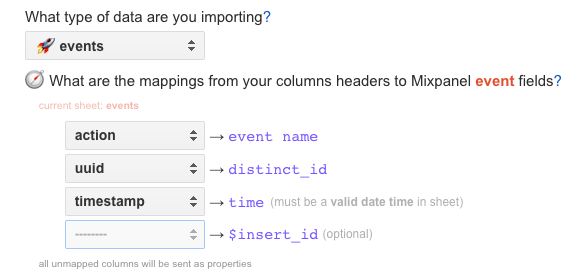
- event name: what to call each event in mixpanel
- distinct_id: the unique user identifier to whom the event is attributed (learn more here)
- time: a valid date or time; if the sheet recognizes your chosen column as a ‘date’ or time’, it should work as intended
- insert_id: a value used to deduplicate records (optional)
- project_id
- project_token
- project_region (data residency)
- project_secret (or Service Account)
Export to Google Sheet
Mixpanel → Sheet queries your Mixpanel project for a report or cohort and makes the results available in a new Sheet. This will replicate the functionality when exporting a CSV file from the Mixpanel UI. There are a number of parameters needed to fetch a CSV from mixpanel. The simplest way to gather those parameters is to paste the URL of the report/cohort you wish to sync from your Mixpanel project, and the app should parse for them automatically: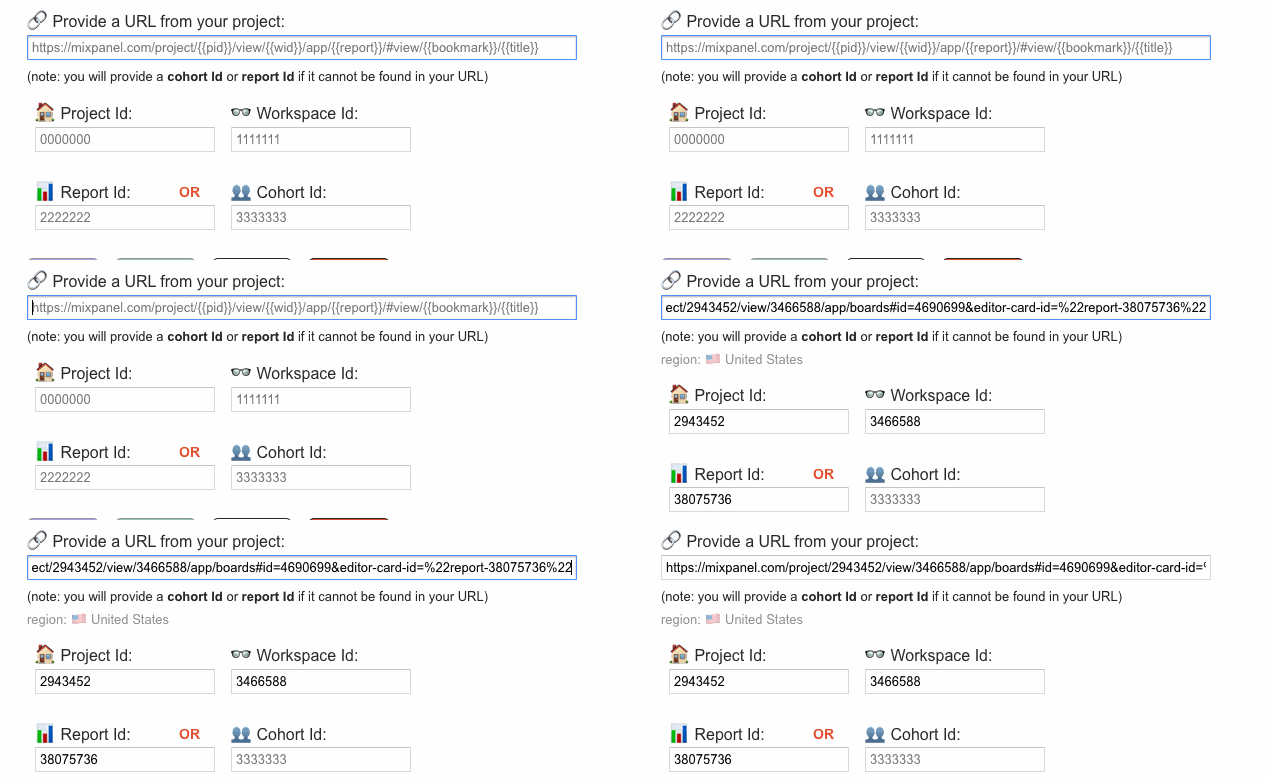
- A Service Account (consumer or higher permission)
- A report URL with
mixpanel.comoreu.mixpanel.com(to resolve data residency) - your project_id
- your workspace_id
- report_id OR cohort_id
Runs and Syncs
Each UI has a similar user interface for you to input your details with four key actions at the bottom: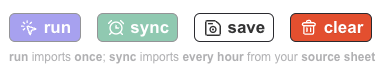
- Run: run the current configuration once; results are display in the UI
- Sync: run the current configuration every hour; run receipts are stored in a log sheet
- Save: store the current configuration
- Clear: delete this sheet’s sync and reload the UI
Permissions
Limited User Policy Sheets™ ⇔ Mixpanel use and transfer to any other app of information received from Google APIs will adhere to Google API Services User Data Policy, including the Limited Use requirements. The app is free to use and does not contain ads, nor will any data collected by Sheets™ ⇔ Mixpanel be resold in any way. No human can read your spreadsheets; usage data is collected and anonymized only to improve the end-user’s experience. Permissions Using the principle of least-privilege, Sheets™ ⇔ Mixpanel requests access to three sensitive scopes to support application functionality, which are explained below:https://www.googleapis.com/auth/script.container.uiis used to draw a dynamic UI which maps the columns headers of your currently active Google Sheet™ into dropdowns in the extension interface.https://www.googleapis.com/auth/script.scriptappis used to support scheduled hourly “sync” functionality so the pipeline you’ve configured in the UI can run automatically.https://www.googleapis.com/auth/script.external_requestis used to send your mapped data to mixpanel and to request your report/cohort data from mixpanel.
FAQ
1. Why isn’t my recurring sync exporting data, even though a manual run works? A recurring sync that is not exporting data despite a functional manual sync may be indicative of a stale trigger caused by the extension entering a bad state (could be caused by a number of reason originating in your local Google Workspace instance). As a troubleshooting step please navigate to Apps Script > My Triggers from your Google Workspace, delete the existing Mixpanel Sheets extension trigger, then try creating a new recurring sync to generate a new trigger. 2. Why is my sync failing to authenticate even though I entered the correct Mixpanel credentials? Some users report seeing the errorAuthorization is required to perform that action. when setting up a sync, despite providing the correct Mixpanel authentication. This issue occurs when you are logged into multiple Google accounts simultaneously, where the sheet is owned by one account (e.g., personal) but the extension is installed on another account (e.g., business).
To resolve the issue, log out and reinstall the extension on the same account you use to access the sheet.